Wiring & software

Your circuit.Its code. Together.

From the first wire to the program on your board. Build the electronics for your project in the same place you design its parts.

Try for free
Try for free

We’ll email you the download link so you can open it on your computer.

Just your download link. No newsletter. Privacy

Open the download page
See how it works
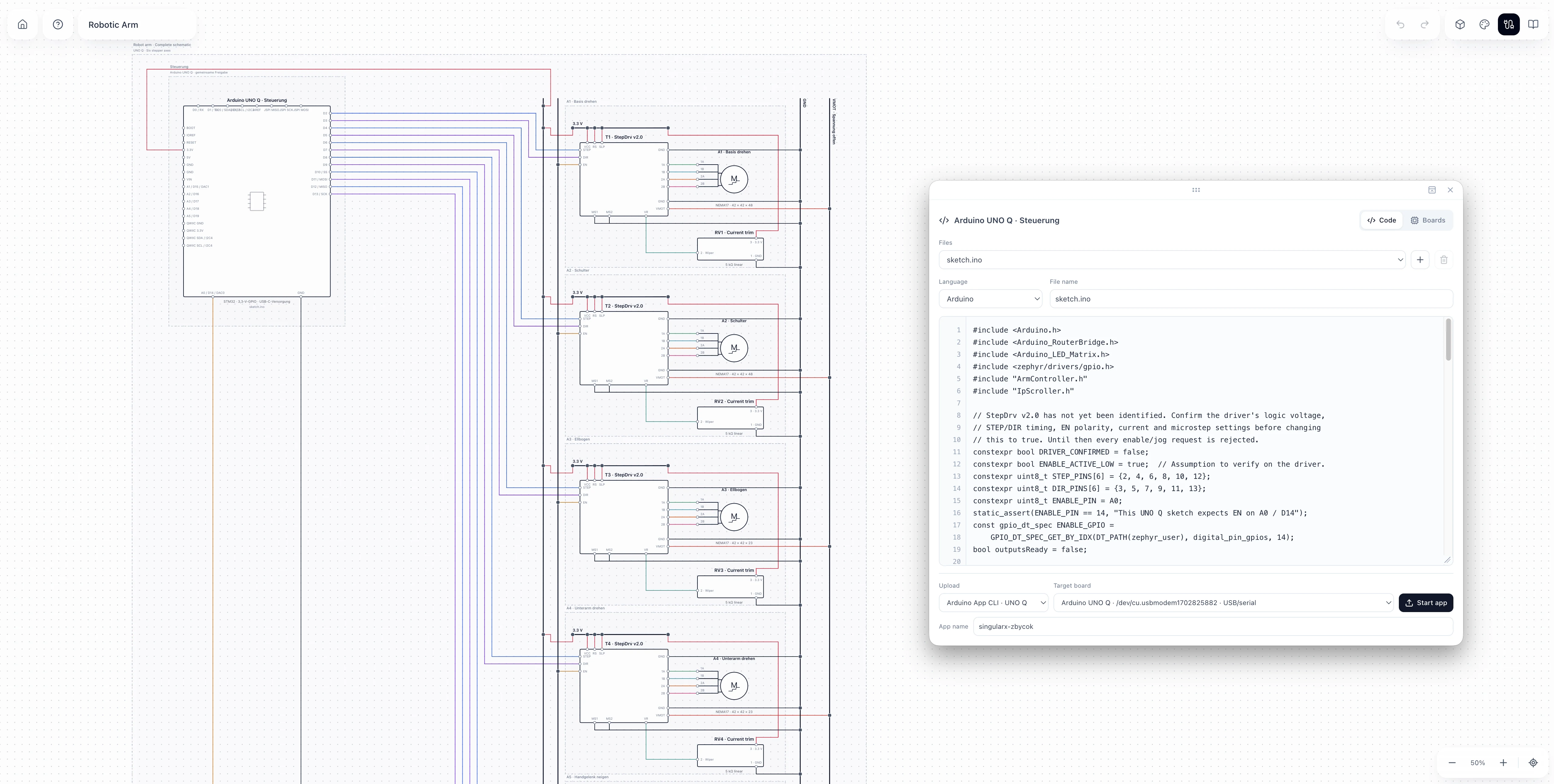
SingularX showing a robot arm wiring diagram with colored connections and an open Arduino UNO Q code window.
One robot arm. Its wiring diagram. The code attached to its board.SingularX / Arduino UNO Q
  1. 01

    Plan the wiring

    Place boards, components and motors. Connect them on the grid and group related parts into named areas.

  2. 02

    Add your code

    Open the code window for your board. Edit sketches, Python and companion files, all saved with your project.

  3. 03

    Run it on your board

    Select a supported board over USB or on your network and start the upload right from the desktop app.

Robot arm schematic detail showing the Arduino board, colored wires and grouped motor drivers.

01 / Wiring

Every connection.
Clearly in view.

Give your electronics room on an infinite canvas. Wires follow right angles, connections snap to the grid, and colors help you tell signals and power apart.

  • Boards, resistors, switches and motors
  • Custom components with your own pins
  • Named areas for each function

02 / Software

The right code.
On the right board.

Your program belongs with your circuit. Attach multiple files to a board and edit them in a detachable code window. Wiring and software stay in the same project.

  • Arduino, C, C++ and Python
  • Sketch and Python app together for UNO Q
  • Program files saved with your project
Detachable SingularX code window showing sketch.ino, language selection and an Arduino UNO Q upload target.

From project to board.

SingularX discovers connected USB boards and supported network boards. Choose your target: sketches upload through Arduino CLI, and complete UNO Q apps run through Arduino App CLI. Required Arduino libraries are prepared before upload.

  • USB & network
  • Arduino CLI
  • Arduino App CLI

Your AI can work here, too.

Connect your AI assistant through the SingularX plugin. It can place components, edit connections, attach programs and start an upload when you ask. You can keep editing everything yourself.

Set up the plugin

Pass it on.
With everything it needs.

Add a snapshot of a schematic area to your assembly manual. Include the matching code and publish it as a download from your cloud project. A QR code or link in the PDF takes the reader straight to the program files.

  1. 01Select an area
  2. 02Add it to your manual
  3. 03Make the code downloadable

A few more answers.

Can I create custom components?

Yes. Alongside the component library, you can create your own elements with names and pins and use them in your wiring diagram.

Can a board have more than one program file?

Yes. Attach multiple files directly to a board, including Arduino sketches, C and C++, Python and companion files. For UNO Q, a sketch and a Python app can belong to the same project.

Do I need AI to create a wiring diagram?

No. You can edit wiring and code yourself. The plugin adds another way to work when you want help from an AI assistant.

How does someone get the code from my manual?

Publish program files as a download from a cloud project and add a code card to your manual. The QR code or clickable PDF link lets readers download individual files or the complete bundle.

Bring your project
to life.

Model, wiring, code and instructions. Together in SingularX.

Download SingularX
Try for free

We’ll email you the download link so you can open it on your computer.

Just your download link. No newsletter. Privacy

Open the download page